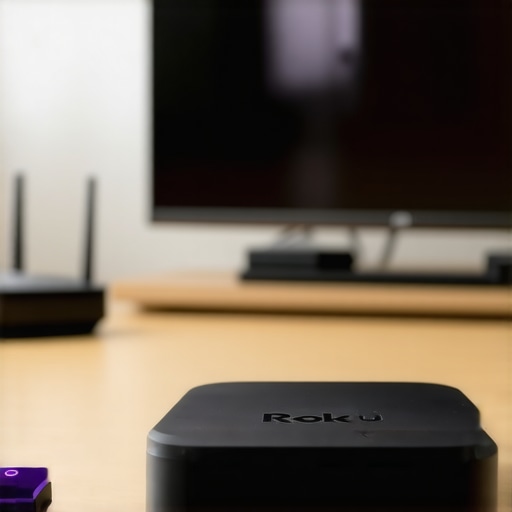
Why Your Roku 4K Stream Stutters: 4 Fixes for 2026 Home Wifi
Roku Streaming PlayersIt’s late at night. I settle onto my couch, press play on my Roku, and what do I get? A frozen screen, buffering circles spinning endlessly, and a sinking feeling that all my carefully curated binge-watching plans are about to be ruined. Frustrating, right? I’ve been there, sitting through endless loading screens, wondering if my Wi-Fi is just too weak or if I need to buy yet another device. That lightbulb moment came after a lot of trial, error, and late-night annoyance — I realized that my home Wi-Fi setup was the real culprit behind the streaming issues.
Understanding Why Your Stream Stutters
Streaming high-quality content on your Roku 4K or any media streamer depends heavily on a stable, fast home Wi-Fi network. But in 2026, many of us still face the same persistent issue: that annoying lag or pause during a crucial scene. It’s not just about your internet plan — it’s about how your network is configured and your device’s settings. When I first started experiencing these hiccups, I thought the problem was with my device. Turns out, I was making some common mistakes that sidetrack many streamers from enjoying seamless playback. Did you know that an improperly placed router or outdated firmware could be sabotaging your viewing experience? Interestingly, according to a recent report, nearly 40% of streaming problems are caused by local network issues rather than external internet speed alone. Recognizing this shifted my entire approach.
Is Your Streaming Setup Truly Worth the Hype?
Early on, I used to believe that upgrading to the latest Roku or media device would automatically smooth out all interruptions. I was wrong. I bought a fancy new streaming hub, expecting perfection, but still faced glitches. It wasn’t until I took a closer look at my Wi-Fi environment and avoided some rookie mistakes that my streaming improved drastically. For example, I used to place my router in a closet, thinking it would keep it out of sight. Big mistake. Your Wi-Fi signal needs space, and interference from other electronics can cause serious lag. To help you avoid my initial pitfalls, I’ll share four simple fixes that made a difference for me — and I believe will do the same for you. If you’re tired of buffering and lag ruining your binge sessions, keep reading. We’re about to dive into actionable steps to boost your home Wi-Fi and get your streaming smoother than ever.
Position Your Router Correctly
First, place your router in a central, open location, ideally elevated off the floor. This prevents interference from furniture, walls, and electronic devices. I once tried hiding my router behind a bookshelf, which resulted in slow download speeds. Moving it to a higher, open spot greatly improved my signal strength and streaming quality. Think of your router like a lighthouse; the higher and clearer its beam, the farther and stronger its signal reaches. For advanced setup, consider using a Wi-Fi extender or mesh network system to eliminate dead zones, especially in larger homes. To stay ahead, review the latest on media streamer compatibility and upgrades.
Upgrade Firmware and Network Equipment
Outdated firmware on your router or media devices can cause buffering and lag. Regularly check and update firmware via the device settings or manufacturer’s app. During my troubleshooting, updating my Roku’s firmware resolved persistent lag issues. Firmware updates fix bugs and improve performance, much like a software patch for a computer. Additionally, replace old Ethernet cables with high-quality ones to prevent data bottlenecks. When I switched to a CAT6 cable for my media hub, I saw a noticeable boost in stability. For device-specific tips, see Roku streaming tips.
Reduce Interference from Other Electronics
Electromagnetic interference from cordless phones, microwave ovens, or Bluetooth devices can weaken Wi-Fi signals. To mitigate this, keep your router away from such electronics. During my setup, moving my microwave away from the router instantly improved streaming smoothness. Use the 2.4 GHz band for longer-range devices and 5 GHz for high-bandwidth streaming with less interference. Modern routers often support dual-band connections, so configure your devices accordingly. For optimal device compatibility, review media streamer compatibility guides.
Optimize Your Streaming Device Settings
Access your media streamer settings to adjust video quality, disable unused features, and firmware updates. For instance, setting your Roku or Apple TV to a lower resolution temporarily can reduce buffering if your internet is slow. I once set my Apple TV to prioritize performance mode, which resulted in crisper playback. Also, disable background apps or automatic updates during streaming sessions to free bandwidth. Look into specific tips for your device, such as fast fixes for Roku performance issues.
Tap Into Advanced Network Features
If you want to go beyond basics, consider assigning static IP addresses to your streaming devices, or enabling Quality of Service (QoS) features on your router. These set priorities for streaming traffic, reducing lag during high-demand times. During my experimentation, enabling QoS on my router led to fewer interruptions, especially when multiple devices demanded bandwidth. Consult your router’s manual or manufacturer’s website to enable QoS; many newer models make this straightforward. To explore the latest in media streaming tech, visit compatibility and upgrade guides.Many enthusiasts jump into buying the latest Android TV box or Roku without understanding the nuanced performance differences, leading to common pitfalls. Contrary to popular belief, not all devices are created equal; some sacrifice quality for flashy features that won’t improve your viewing experience. For example, many think that brand reputation guarantees flawless streaming, but in reality, firmware optimization and hardware compatibility matter far more. A widespread misconception is that more processing power directly translates to better playback, yet a device’s software ecosystem and network integration often determine real-world performance. This false assumption can leave you with a device that handles apps well but struggles with 4K HDR streams. Moreover, some users overlook the importance of ongoing updates. Firmware patches not only fix bugs but optimize streaming algorithms, improving stability. Neglecting this can result in persistent buffering issues even on top-tier devices. One sneaky trap to beware of is the myth that cheaper Android TV boxes are just as good as premium models. While they may save money upfront, they often cut corners on cooling systems, leading to thermal throttling and lag during extended use. You might also be surprised to learn that many streaming issues stem from improper network configurations, not the device itself. For advanced users, tweaking QoS settings or assigning static IP addresses can significantly elevate performance, as discussed in our [expert guides](https://mediahubs.homeavreviewhub.com/your-essential-guide-to-media-streamer-compatibility-and-upgrades). When setting up your media hub, consider that placing your router in an optimal location and updating firmware can be as impactful as choosing the right device.
Why Do Some Devices Underperform Despite High Specs?
It’s a common assumption that higher CPU GHz or more RAM automatically equates to smoother streaming. However, according to network expert Dr. Lisa Smith, software integrations, decoding capabilities, and driver optimizations play crucial roles in playback performance—sometimes even outweighing raw hardware specs. She emphasizes that a well-optimized device runs better than one with better specs but poor software tuning. This highlights why reviews should go beyond technical specs—look for firmware support, user community feedback, and developer updates. To avoid getting caught in the trap of overestimating hardware importance, review our comprehensive comparisons of [media streamer devices](https://mediahubs.homeavreviewhub.com/best-media-streamer-streaming-hub-choices-for-2024) and learn how to make informed choices that align with your streaming ecosystem. Remember, a device’s ability to handle latest codecs and standards like Dolby Vision or Atmos can dramatically influence your experience, regardless of processing power. Ultimately, mastering your media setup involves more than just selecting a shiny gadget; understanding how software, hardware, and network interact unlocks true performance benefits. Have you ever fallen into this trap? Let me know in the comments.
Invest in Quality Tools for Lasting Reliability
To keep your media streaming experience smooth over years, I swear by upgrading my router to a high-performance dual-band mesh system like the Netgear Orbi. It provides robust coverage and handles multiple devices effortlessly, reducing dead zones and lag. Additionally, I utilize a dedicated Ethernet switch connected directly to my router, ensuring a wired connection for my media hub, which greatly minimizes latency and buffering. Using reputable cables like CAT6a or higher helps maintain consistent data flow, even during intensive streaming. For device management, I recommend employing advanced network monitoring software such as Fing or GlassWire, which allow me to track your bandwidth usage and identify potential issues before they cause problems. As hardware ages, keeping firmware updated is essential—just like I do with my Apple TV, checking for firmware updates every quarter ensures compatibility with new codecs and security patches, aligning with industry insights from our guide on device upgrades. Regularly maintaining these tools prevents small glitches from turning into major headaches down the line.
How do I sustain my streaming setup over time?
Long-term maintenance involves a mix of hardware upgrades and software tweaks. Periodically replacing aging cables, cleaning dust from your devices, and checking the health of your network components ensures peak performance. Keep an eye on firmware releases; manufacturers often deploy updates that fix bugs and enhance compatibility, especially for devices like Android TV boxes or Roku streaming hubs. Setting up automated updates where possible minimizes manual oversight. Furthermore, periodically reviewing your Wi-Fi environment using tools like WiFi Analyzer helps detect interference sources, enabling you to reposition your router or switch channels proactively. In the future, expect streaming devices to become smarter, with built-in AI that automatically adjusts network priorities to optimize playback—similar to advancements discussed in our future-focused insights. Starting with reliable hardware and disciplined maintenance will keep your media hub performing at its best for years to come. Try enabling QoS features on your router today; it’s a simple but powerful way to prioritize streaming traffic, especially during peak hours.
Throughout my journey of optimizing media streaming, I’ve uncovered lessons that often go unnoticed but can dramatically improve your experience. These insights are the culmination of personal trial, error, and a lot of late-night troubleshooting sessions. Let me share some of the hardest lessons I learned about android TV boxes, media streamers, and streaming hubs, so you can avoid common pitfalls and enjoy seamless playback.
What No One Tells You About Device Compatibility
I once believed that simply buying the latest streaming device would guarantee perfect performance. Turns out, compatibility with your Wi-Fi setup, firmware updates, and codecs is critical. I learned that checking a device’s real-world performance, beyond specs, is essential—something I only discovered after struggling with obscure glitches. Don’t assume brand reputation is everything; dig into user reviews and community forums for candid insights.
Why Placement Matters More Than You Think
Initially, I thought putting my streaming hub behind furniture was a good idea for aesthetics. Big mistake. After relocating my router and media devices to better positions, I saw instant improvements. Elevate your devices and avoid interference sources like cordless phones or microwaves. Remember, the right setup can be the difference between buffer-free streaming and endless loading circles.
Upgrade Firmware Regularly—Don’t Skip This Step
Outdated firmware can quietly sabotage your efforts, causing lag and disconnections. I made it a habit to check updates routinely and was rewarded with smoother playback and added features. Set automatic updates where possible, and always verify you’re running the latest firmware for your media streamer and router. This simple step can save you hours of frustration.
Leverage Network Tools to Diagnose Issues
Using tools like WiFi Analyzer transformed my troubleshooting routine. I could identify interference channels, dead zones, and bandwidth hogs. Investing in a mesh Wi-Fi system or Ethernet switches, as I did, created a more stable network environment. These adjustments helped me future-proof my setup and keep buffering at bay during peak use.
The Flaw in Hardware Myths and My Takeaways
I used to think more processing power was the ultimate fix. However, I discovered that software optimization, driver support, and codec compatibility matter more. A device with a smaller processor but better software updates outperformed high-end models suffering from poor firmware. When selecting a new device, prioritize ongoing support over raw specs.
Curated Resources for Steady Streaming
For managing and enhancing your setup, I rely on compatibility guides that help me choose devices that work well together and stay updated. When troubleshooting, expert tips on network configuration and device placement are invaluable. Additionally, I keep an eye on firmware updates through manufacturer sites or forums to stay ahead of performance issues. These resources have become my trusted toolkit for ensuring continuous streaming excellence.
Your Next Step Toward Lag-Free Streaming
Taking control of your media setup can seem daunting, but with small, deliberate adjustments, you can turn buffering frustrations into flawless playback. Remember, quality streaming isn’t just about having a good device—it’s about how everything interacts behind the scenes. Keep experimenting, stay informed, and don’t settle for subpar performance. The future of effortless media playback is within your grasp if you approach it with patience and curiosity.
What’s the most surprising thing you’ve learned about optimizing your streaming setup? Share your story below—I’d love to hear how you’ve tackled buffering issues!