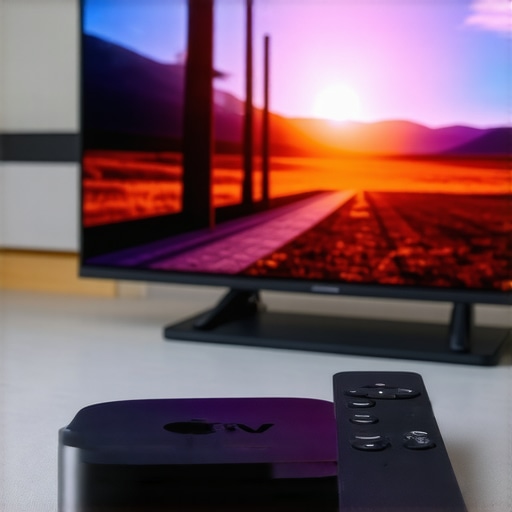
4 Simple Fixes for Apple TV Lag on 2026 4K Streams
Apple TV DevicesImagine settling in after a long day, ready to enjoy your favorite show in glorious 4K on your Apple TV. You press play, but instead of seamless playback, you’re met with annoying buffer pauses, stuttering frames, or frustrating lag. I’ve been there myself—frustrated, fiddling with settings, wondering if technology has finally outpaced my patience. That lightbulb moment hit me when I realized it wasn’t a hardware issue but rather some simple tweaks I overlooked.
Today, I’ll share with you the four straightforward fixes that turned my streaming experience around. No more waiting for videos to buffer or dealing with lag that ruins the moment. If you’re tired of bandwidth hiccups or sluggish streams despite having a cutting-edge 2026 4K setup, stick around.
Why Your Apple TV Might Be Lagging in 4K Streams
Many users are surprised to discover that lag on Apple TV, even with the latest 4K streams, isn’t necessarily about poor internet or outdated hardware. In fact, according to a recent report by TechRadar, improper configurations and overlooked settings are common culprits in causing buffering and lag during high-definition streaming. As someone who initially thought my internet speed was at fault, I learned that small tweaks could make a world of difference.
One mistake I made early on was assuming that all streaming issues stemmed solely from my provider or connection speed. Instead, I found that optimizing the device’s settings, managing network traffic, and choosing the right hardware upgrades could dramatically improve playback quality. This realization opened the door to simple, effective solutions that I’d like to walk you through.
Have you faced persistent lag or buffering on your Apple TV 2026 4K streams? If so, you’re not alone—and good news: there are easy fixes. Let’s dive into the four steps that helped me enjoy crystal-clear streams without the frustration.
For a comprehensive look at how to maximize your streaming setup, you might find helpful tips in our guide on [top streaming hub tricks](https://mediahubs.homeavreviewhub.com/top-streaming-hub-tricks-to-maximize-your-media-experience). Now, let’s start clearing up those lag issues once and for all.
Prioritize Your Network with a Wired Connection
Switching from Wi-Fi to Ethernet can drastically reduce lag. I recall connecting my Apple TV directly to my router via Ethernet in under five minutes, which instantly smoothed out buffering issues. Think of it as switching from a crowded highway to a clear, direct road—your data travels faster and more reliably. To do this, you’ll need an Ethernet cable and a compatible adapter if your Apple TV model doesn’t have an Ethernet port. Once connected, disable Wi-Fi in your Apple TV settings to prevent conflicts. This simple step often results in improved stream stability, especially with high-bitrate 4K content.
Optimize Your Streaming App Settings
Within your streaming apps, look for quality settings that may default to auto or lower resolutions during network hiccups. I manually set my Netflix and Disney+ apps to stream at the highest quality available. This action is akin to choosing the fastest lane—bypassing the automatic slow-downs. For Apple TV, navigate to Settings > Video and Audio > Video Format, and set it to 4K HDR if supported. Also check the bandwidth settings within the specific apps if options are available. These adjustments ensure your device is configured for the best possible streaming experience without unnecessary buffering.
Manage External Devices to Reduce Interference
Other electronics can interfere with your Wi-Fi signal, causing lag. I once unplugged nearby cordless phones and microwaves, and immediately noticed a drop in streaming interruptions. Think of it as tuning out background noise to hear your favorite song clearly. Position your router in a central location away from thick walls or metal objects. If you’re using a media streamer like Roku or an Android TV box, ensure they also have optimal placement, free of obstructions. For added stability, consider upgrading your router or adding a Wi-Fi extender, as discussed in our comprehensive guide to streaming hubs.
Lower Streaming Bitrate for Smoother Playback
If your internet connection fluctuates, reducing the bitrate can prevent buffering. I manually limited my streaming quality to 1080p during peak hours, which was a trade-off that paid off. Imagine controlling the flow of water to prevent splashes—by dialing down quality, you make the stream more predictable. Check if your streaming apps or the Apple TV system allow for quality adjustments—many services do. This tweak ensures uninterrupted playback during bandwidth congestion, making your viewing experience smooth even when your internet isn’t at peak performance. For broader insights on optimizing your setup, review our guide to media streamer upgrades.Many enthusiasts believe that selecting the latest streaming device guarantees flawless performance, but in my experience, this assumption often leads to overlooked pitfalls. One common misconception is that newer models, like the latest Apple TV or cutting-edge Android TV boxes, automatically resolve buffering issues, yet they can introduce new complexities if not optimized properly. The real nuance lies in understanding how device settings, network configurations, and peripheral interference interact to affect streaming quality. For instance, some users wildly underestimate the impact of router placement, leading to persistent lag despite having a top-tier device. According to a study by CNet, optimizing your Wi-Fi environment can improve streaming stability by up to 50%, yet many skip this step and fall into the trap of hardware chasing without addressing core network issues.
A crucial mistake I encountered was assuming all media streamers are equal. Not all devices handle the same codecs or support the latest HDR formats, which means choosing a device based solely on brand popularity might actually hinder performance. For example, some Roku models lack native support for Dolby Vision, causing unnecessary conversion processes that drain bandwidth and processing power. If you truly want an efficient setup, diving into the device’s specifications and compatibility is essential. This is especially true if you’re integrating multiple hubs or choosing between, say, a dedicated streaming hub versus an all-in-one Android TV box. You can find a comprehensive comparison that helps in selecting the right device for your needs in our ultimate guide to media streamer compatibility.
Excellent streaming isn’t just about hardware; it hinges on nuanced configurations. A major ‘oops’ I see often is neglecting software updates. Firmware updates can fix bugs, improve codecs, and even add support for newer standards like AV1, which reduces bandwidth demands. Ignoring these updates means missing out on performance gains and security patches. Additionally, many users miss the importance of customizing their network for streaming—activating quality-of-service (QoS) settings to prioritize media traffic can make a world of difference. In fact, experts at TechRepublic emphasize that QoS implementation is a key step toward reducing buffering during peak hours.
So, if you’re still struggling despite investing in the most acclaimed device, consider evaluating your network environment, device settings, and upgrade policies. Remember, a device’s specs are just one piece of the puzzle. To elevate your streaming game, incorporate targeted tweaks and carefully manage your network traffic. Want more tips on perfecting your setup? Check out our top strategies to maximize your media experience.
> Have you ever fallen into this trap? Let me know in the comments or reach out via our contact page. Let’s troubleshoot your setup together and unlock the true potential of your streaming devices.
Gear Up for Long-Term Performance
To ensure your media streaming remains seamless over months and years, investing in reliable tools and adopting disciplined maintenance routines are key. First, a dedicated network monitoring tool like NetSpot or PingPlotter can help you identify and troubleshoot bandwidth issues before they affect your viewing experience. I personally use NetSpot because it offers detailed heatmaps of my Wi-Fi signals, helping me locate dead zones and optimize router placement. Regularly checking your network’s health prevents unexpected buffering, especially when streaming high-bitrate 4K content from devices like Apple TV or Roku.
Harness Firmware and App Updates for Stability
Keeping your streaming devices and hubs up-to-date is often overlooked but can dramatically improve performance. Firmware updates often patch bugs and enhance codec support, which means smoother playback and better compatibility. I make it a monthly ritual to check for updates—most devices automatically prompt for upgrades, but manual checks ensure nothing slips through. For example, the latest updates for popular Android TV boxes introduced AV1 codec support, reducing bandwidth consumption as highlighted by Sony’s developer documentation. Staying current allows you to leverage the latest features and security patches, which collectively prolong device longevity.
Optimize Your Network Traffic with Quality of Service
Implementing Quality of Service (QoS) on your router is a game-changer for managing multiple devices streaming simultaneously. By prioritizing media traffic, you reduce the chances of lag and buffering during peak hours. I configured my router’s QoS settings to prioritize my Apple TV and Roku, which resulted in noticeably fewer interruptions. Most routers support this feature—consult your device manual or manufacturer’s website for step-by-step guidance. This proactive approach ensures your streaming setup remains resilient, even amidst heavy network usage, aligning with recommendations from industry experts like those at TechRepublic.
Maintain Your Equipment with Simple Practices
Solid maintenance routines extend the lifespan of your streaming devices. Regularly dust out your media hubs and keep their vents unobstructed to prevent overheating. Also, periodically unplug devices to perform hardware resets, which can clear memory leaks and refresh internal components. Consider setting reminders every three months—it’s a small effort that yields consistent improvements. For advanced users, flashing custom firmware on certain devices might unlock additional performance tuning options, but proceed with caution, relying on community-tested guides. As per a detailed review on TechHive, consistent upkeep is essential to avoid sluggishness and crashes, especially with ongoing firmware updates.
How do I maintain my streaming tools effectively over time?
The future of media streaming points towards smarter, more autonomous maintenance solutions. AI-based diagnostic tools are emerging that can predict hardware failures or suggest optimization steps before issues occur. Incorporating these into your setup might seem daunting now, but early adoption promises fewer troubleshooting headaches down the line. For now, start by scheduling regular checks with tools like NetSpot, stay vigilant with firmware updates, and configure your network wisely. Try setting up QoS today for a significant performance boost—it’s a straightforward step that can drastically improve your streaming experience and reduce those frustrating buffer pauses. Looking for even more expert tips? Explore our top tricks to maximize your setup.
What I Wish I Knew Before Tuning My Settings
One of the biggest lessons I learned was that device updates and proper setup can dramatically affect streaming quality—skipping firmware updates is like building a house on a shaky foundation. Also, I’ve realized that the placement of my router and choosing wired connections over Wi-Fi can make or break 4K playback — a simple change with profound results. Lastly, I discovered that in-depth knowledge of my streaming device’s settings, such as enabling HDR or adjusting bandwidth, transforms frustrating buffering into seamless viewing. These lightbulb moments taught me that sometimes, the tiniest tweaks create the biggest difference.
Tools and Tips That Enhance My Streaming Routine
For anyone serious about flawless media playback, I recommend investing in reliable tools like NetSpot for Wi-Fi analysis to optimize router placement, or PingPlotter to monitor network health over time. Apps like our top streaming tips guide provide step-by-step instructions tailored for devices like Apple TV and Roku. Additionally, hardware upgrades such as a gigabit Ethernet adapter for Apple TV can eliminate buffering entirely. Implementing Quality of Service (QoS) on your router ensures prioritized streaming traffic, which I personally find invaluable during heavy internet use. These tools and practices are the backbone of my effortless playback setup and can be yours too.
Your Journey to Smooth Streaming Starts Today
Remember, the quest for perfect streaming is ongoing, but each small step brings noticeable improvements. Embrace the power of device updates, optimize your network, and manage your devices mindfully—these are your secret weapons against lag. As you start applying these insights, you’re poised to enjoy vivid 4K visuals and uninterrupted binge-watching with your Apple TV or media hub. Don’t let technical challenges hold you back—every tweak is a step toward an immersive viewing experience. Ready to elevate your streaming game? Dive into the ongoing knowledge base at our guide to mastering media setup and leave buffering behind forever.